Using ModelVerse API in Cherry Studio
Configuration Steps
Follow these steps to configure and use the API services provided by ModelVerse in Cherry Studio.
Step 1: Obtain an API Key
First, click here to get your API Key .
Step 2: Configure Cherry Studio
-
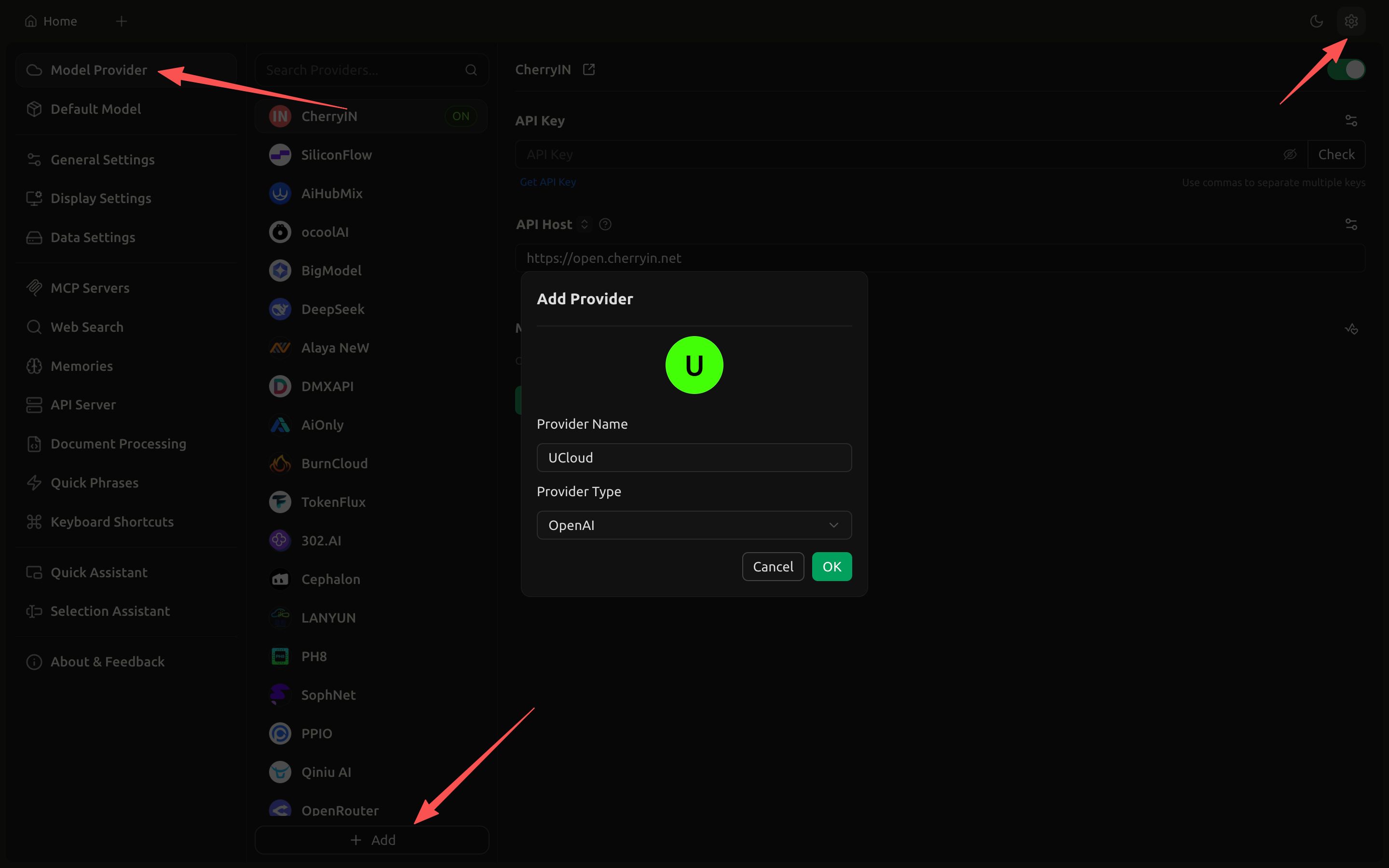
Click the gear icon in the upper right corner of the interface to enter settings, then select “Model Services”.
-
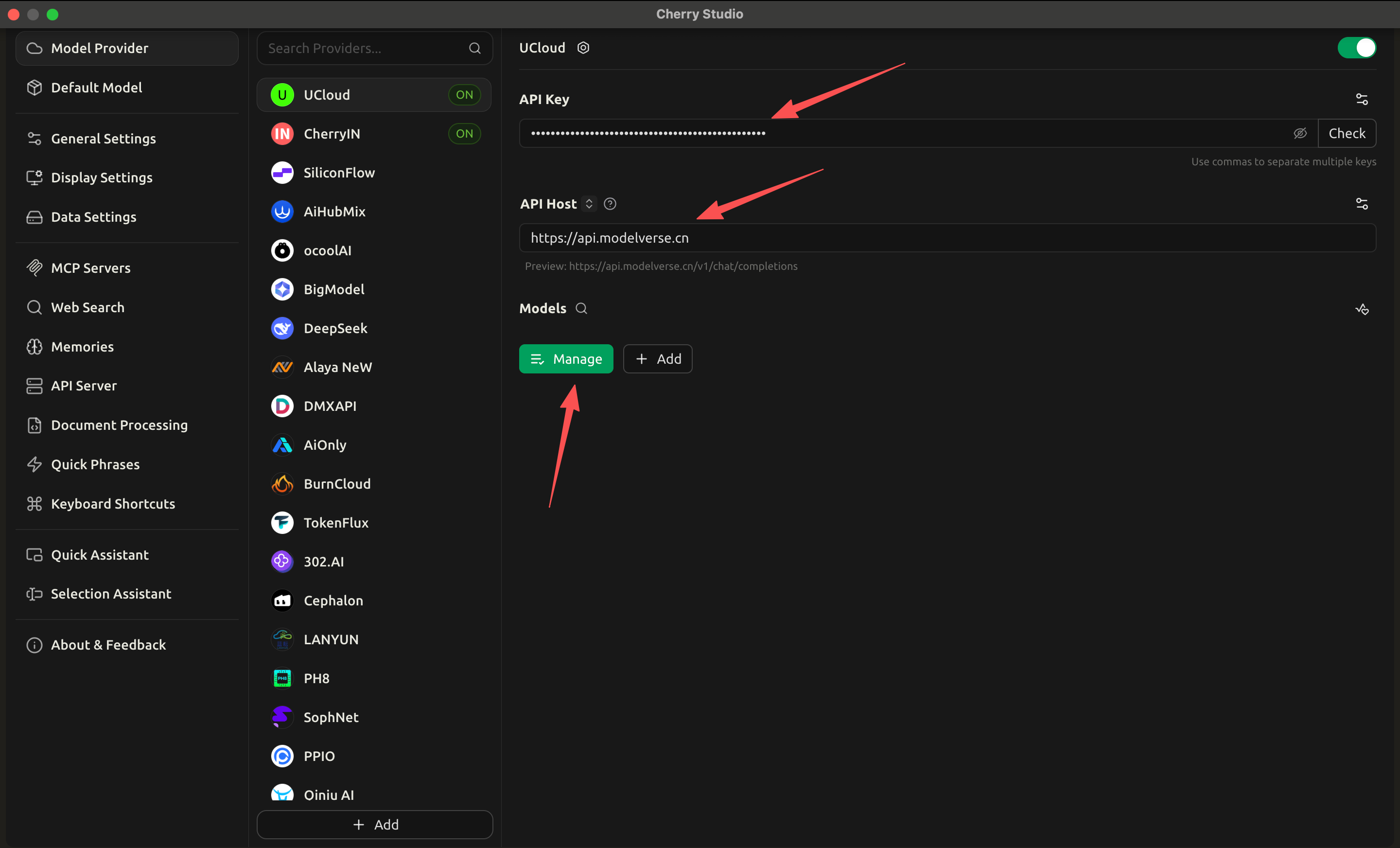
On the configuration page, fill in the following information:
- API Address:
https://api.umodelverse.ai - API Key: Paste the API Key you obtained in the first step
- API Address:
-
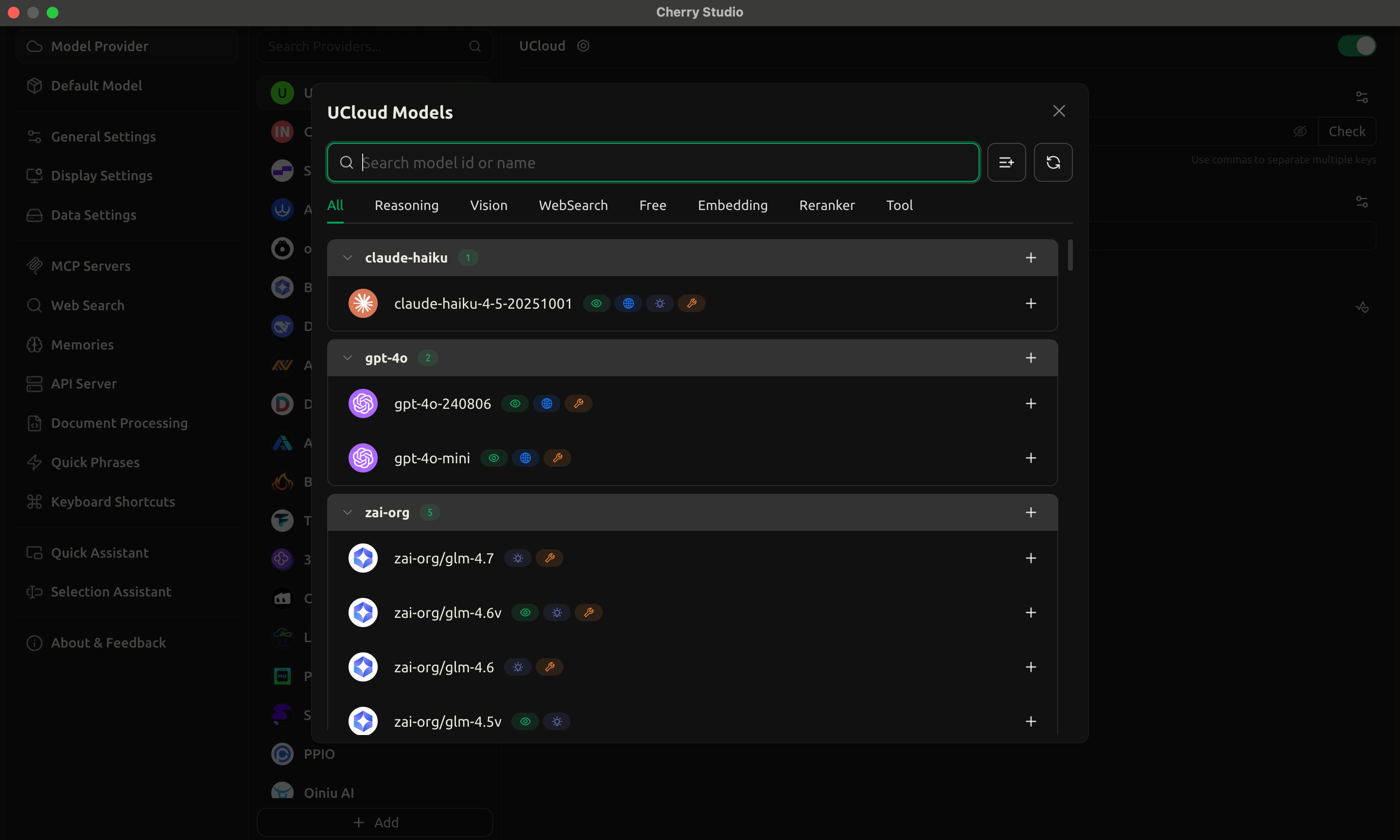
Click “Manage”, and the system will automatically retrieve and load all available models.
Step 3: Start Using
Once configured, you can use models from ModelVerse in Cherry Studio.