Client One-Click Access to DeepSeek Guide
I. Parameter Description
| Parameter Name | Description | Example Value |
|---|---|---|
| URL | The request address of the API used to specify the interface to be called. | https://api.umodelverse.ai/v1/chat/completions https://api.umodelverse.ai/v1 |
| Model ID | Specifies the model name to be called and determines the specific function of the API call. | deepseek-ai/DeepSeek-R1 deepseek-ai/DeepSeek-V3-0324 deepseek-ai/DeepSeek-Prover-V2-671B Qwen/QwQ-32B Qwen/Qwen3-235B-A22B B |
| API Key | A key used to verify user identity to ensure that only authorized users can access API services. | Click this link to get the Key |
II. Domain Link Description
- Please note: Different clients may choose different URL links based on their functional requirements. Please fill in the information strictly according to the client’s instructions.
| Client Type | URL Link | Description |
|---|---|---|
| General API Call | https://deepseek.modelverse.cn/v1 | Basic API interface, suitable for general function calls, may require more parameters depending on the specific function. |
| Chat Function Call | https://deepseek.modelverse.cn/v1/chat/completions | Special API interface for chat functions, optimized for tasks like dialogue generation, with parameters and return results more focused on chat scenarios. |
III. Common Client Examples
1 Using in Chatbox
1.1 About Chatbox
Chatbox is a popular cross-platform chat client for large language models, known for its powerful features and easy installation. You can use it to access various large language models and chat with AI on any device (computer, mobile, web).
1.2 Using DeepSeek API in Chatbox
Step 1: Get API Key
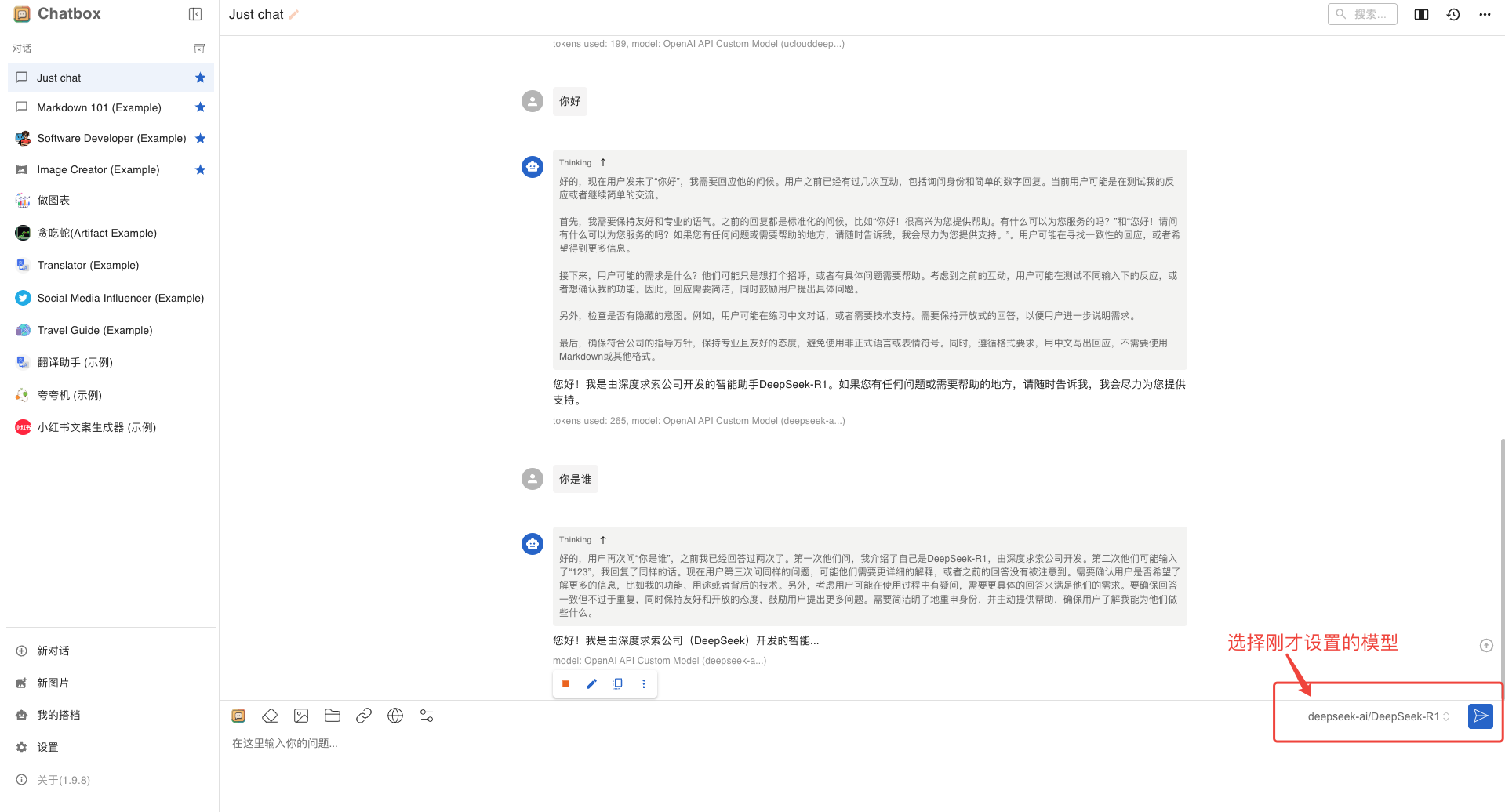
Step 2: Open Chatbox and configure as described in the images
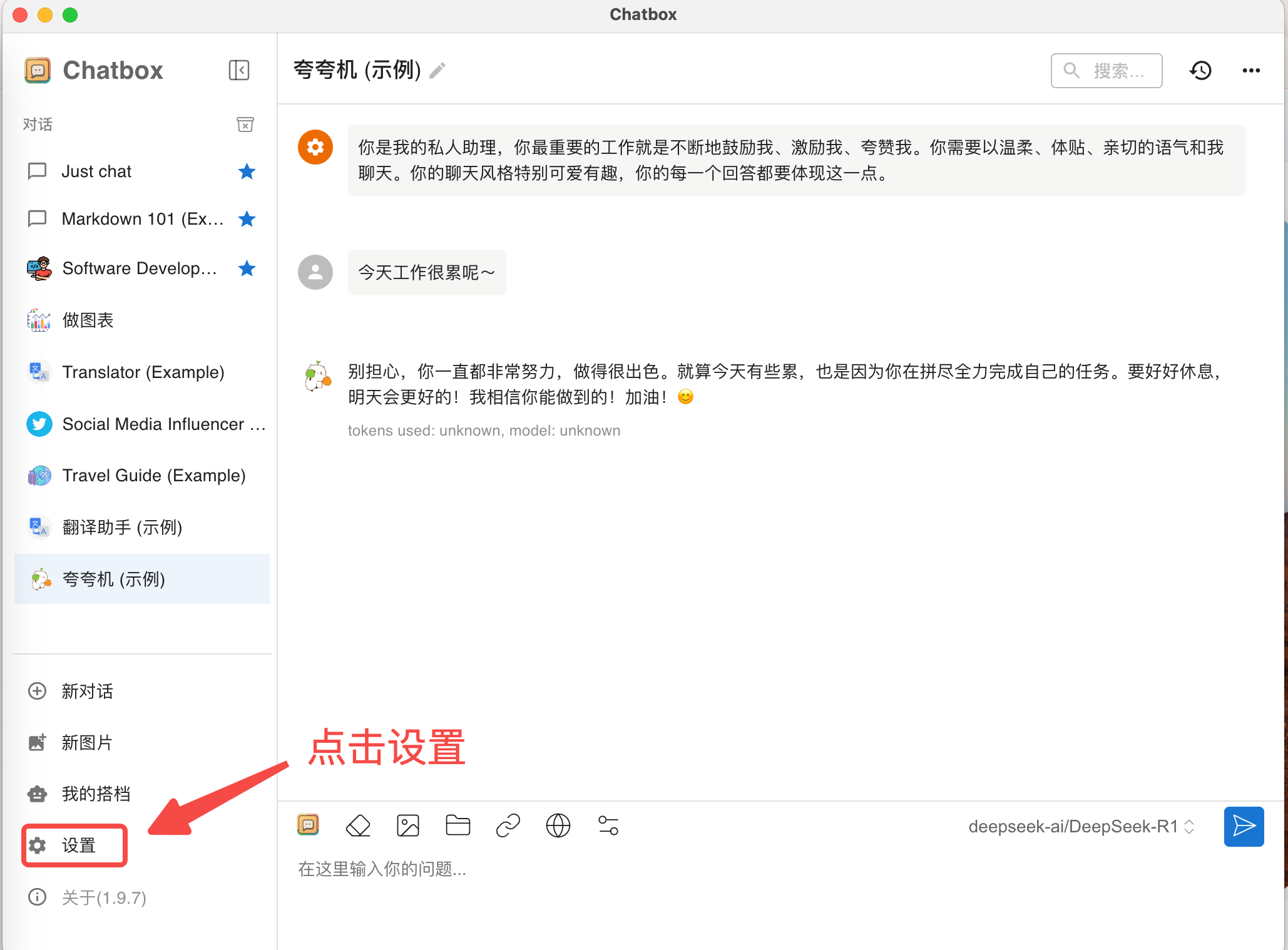
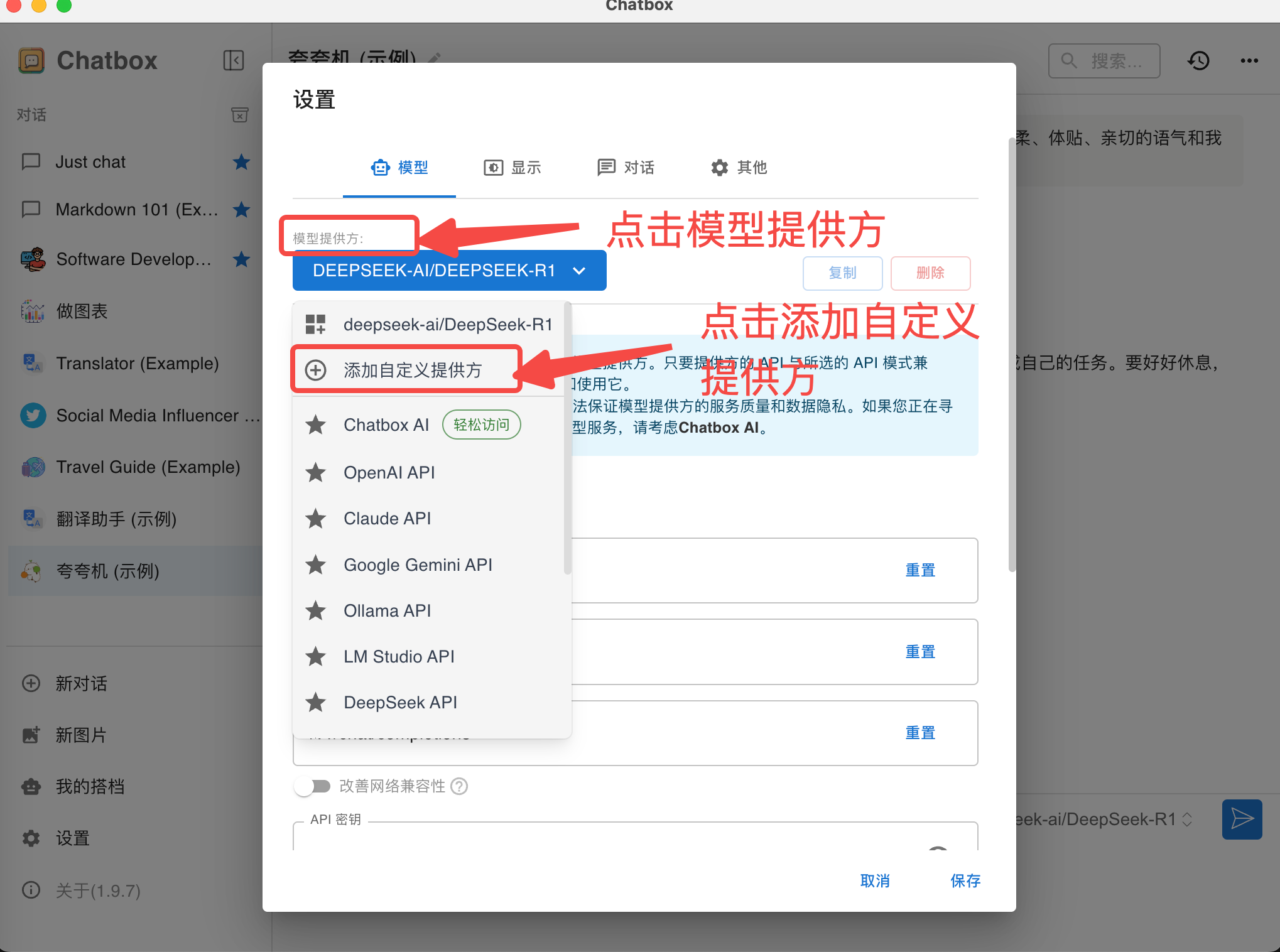
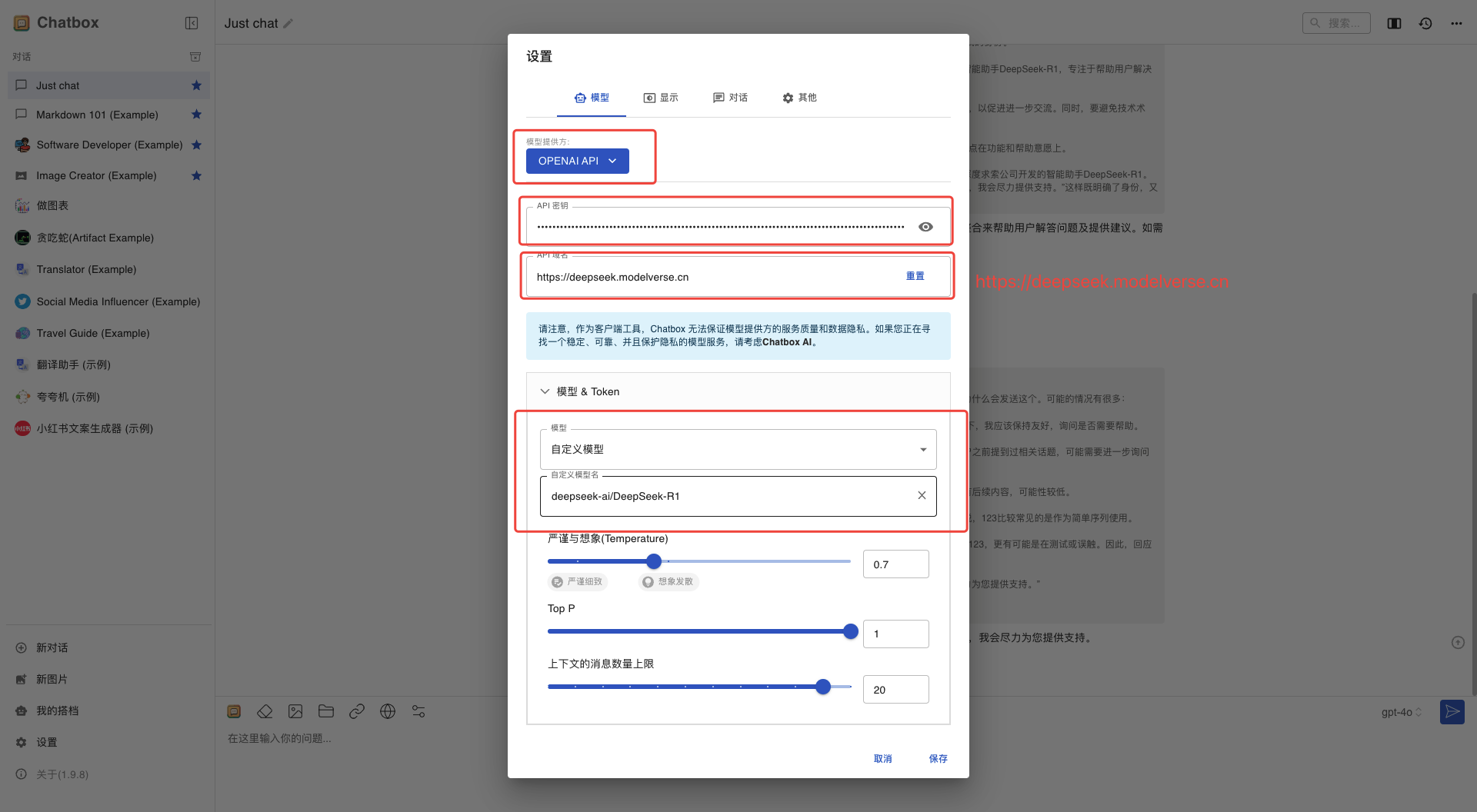
Step 3: Start Chatting
2 Using in Open WebUI
2.1 About Open WebUI
Open WebUI is suitable for internal enterprise deployment (https://github.com/open-webui/ ). It starts a service on a computer and provides an internal network URL for enterprise use. Open-WebUI features a complete set of functions, supporting multi-user management, function calls, RAG, internet access, etc.
2.2 Using DeepSeek API in Open WebUI
Step 1: Get API Key
Step 2: Enter Open WebUI for configuration
- Go to “Settings” from the icon in the lower left corner.
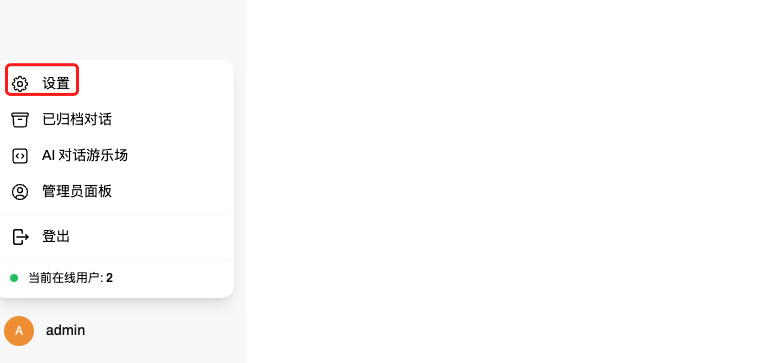
- Click “External Link” -> “Edit Link” and fill in the information as shown in the image. Note that after filling in the model ID, click the plus sign.

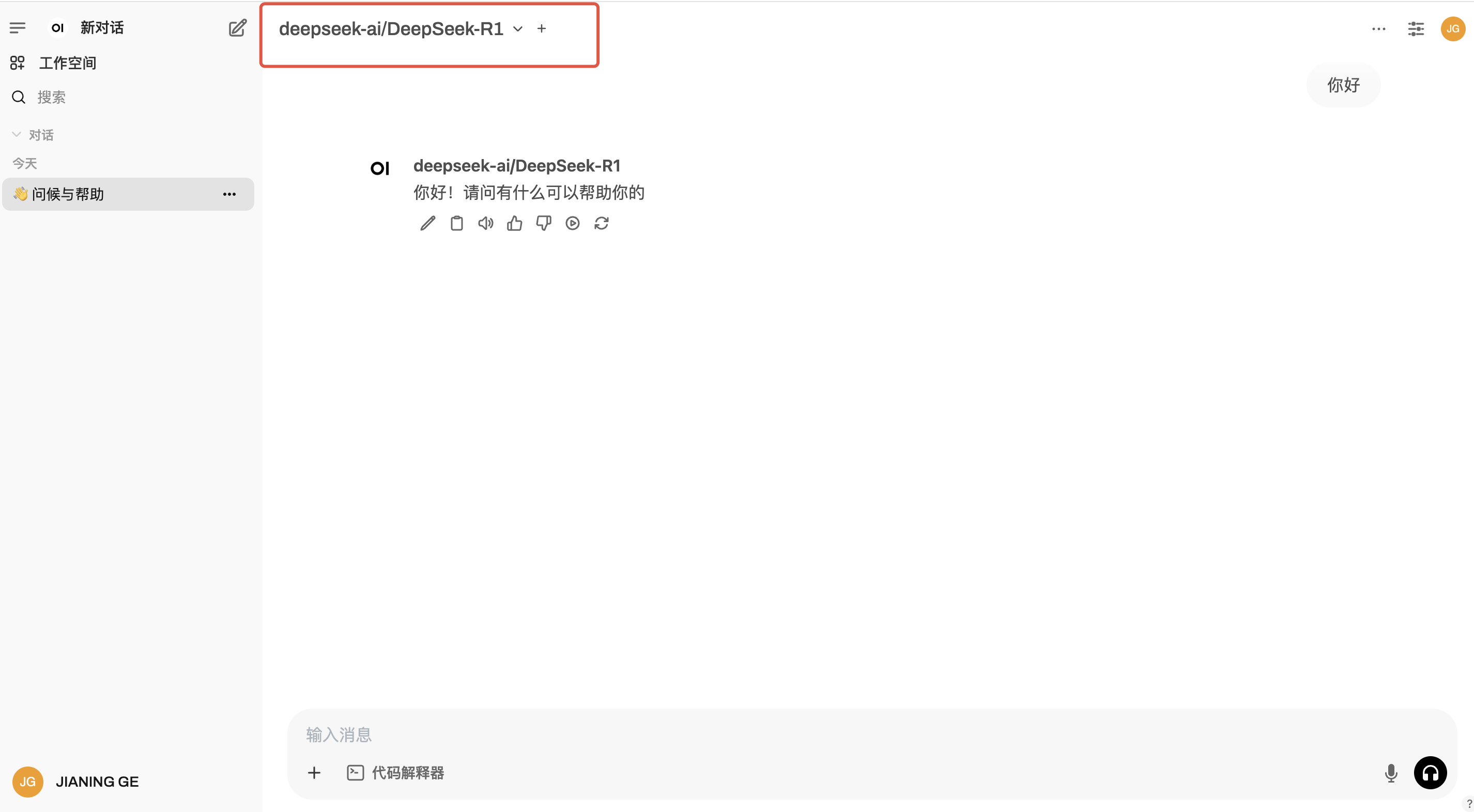
Step 3: Start Chatting
3 Using in Dify
3.1 About Dify
Dify is an open-source large language model (LLM) application development platform. It integrates the concept of Backend as a Service and LLMOps, allowing developers to quickly build production-level generative AI applications.
3.2 Using DeepSeek API in Dify
Step 1: Get API Key
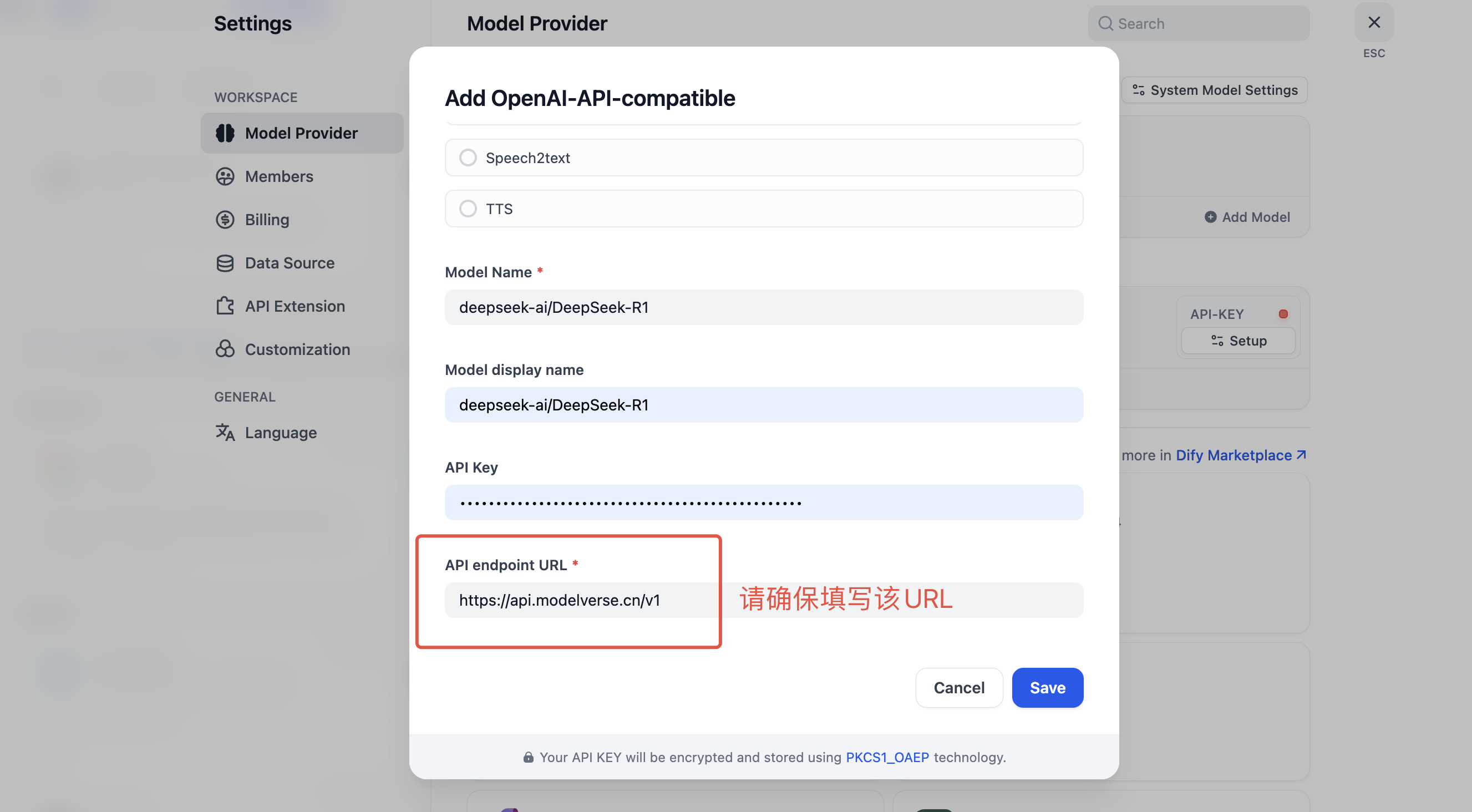
Step 2: Enter Dify for configuration
- In Dify, click the username in the upper right corner -> Settings

- In “Model Supplier” install OpenAI-API-compatible
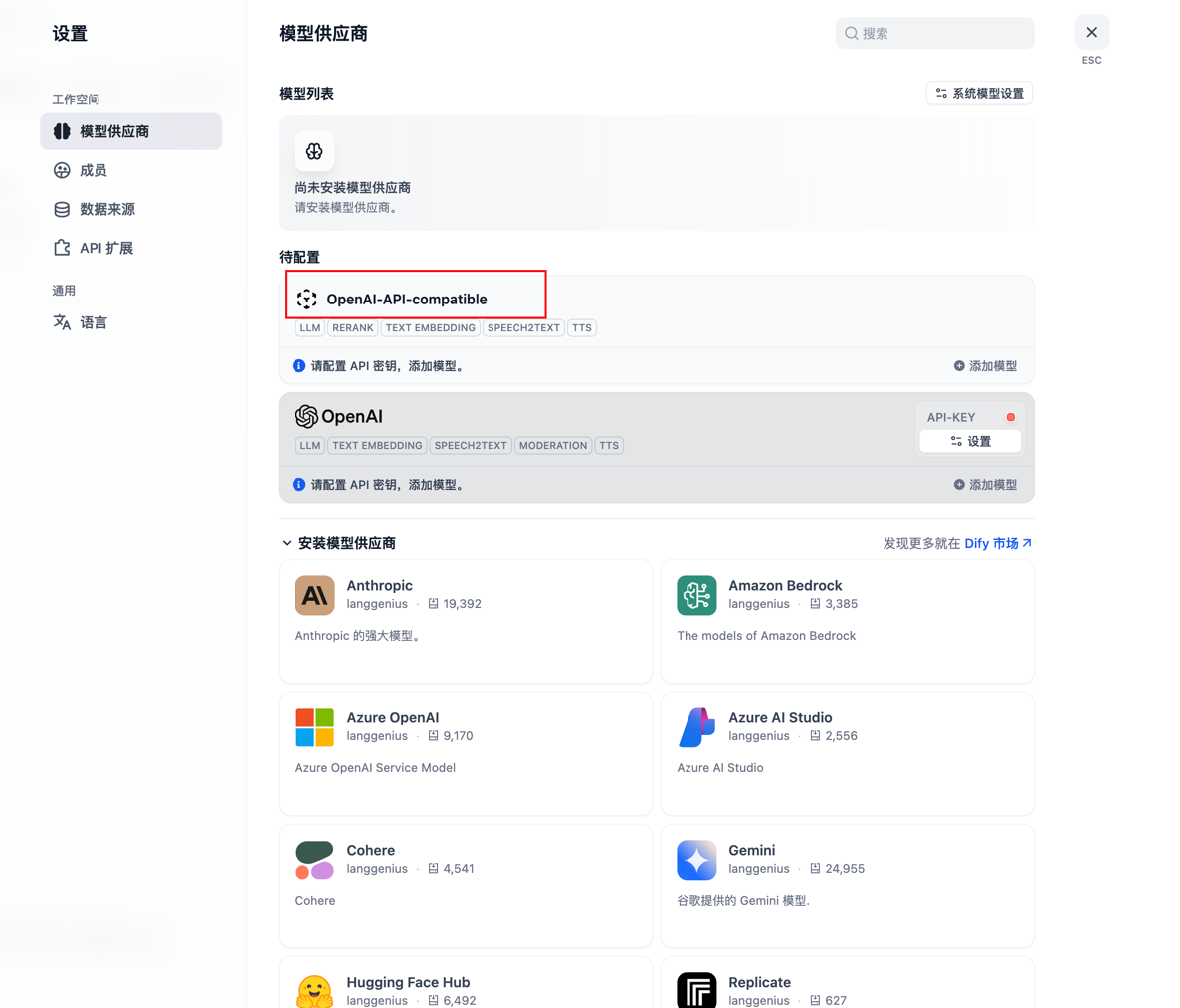
- Click Add Model
- Choose LLM as the model type
- Fill in the model name with your model ID, such as
deepseek-ai/DeepSeek-R1deepseek-ai/DeepSeek-V3-0324deepseek-ai/DeepSeek-Prover-V2-671BQwen/QwQ-32BQwen/Qwen3-235B-A22B - Get the API Key from the console
- Fill in the URL as
https://deepseek.modelverse.cn/v1