Using ModelVerse API in ComfyUI
About ComfyUI
ComfyUI is a node-based workflow interface for Stable Diffusion GUI. By breaking down the workflow of Stable Diffusion into nodes, it enables more precise workflow customization and comprehensive process replication.
Preparation
Step 1: Install ComfyUI
Please refer to the official ComfyUI documentation for installation instructions.
Step 2: Install XXXCloud Plugin
- Open the Manager in the top right corner of ComfyUI, and click Custom Nodes Manager.
- Search for “ComfyUI-XXXCloud”.
- Click Install.
- Restart ComfyUI.
Step 3: Create Modelverse Node
You can find and add the custom plugin nodes we developed in the node list on the left, or right-click on the canvas and select nodes under the “UCLOUD_MODELVERSE” category.
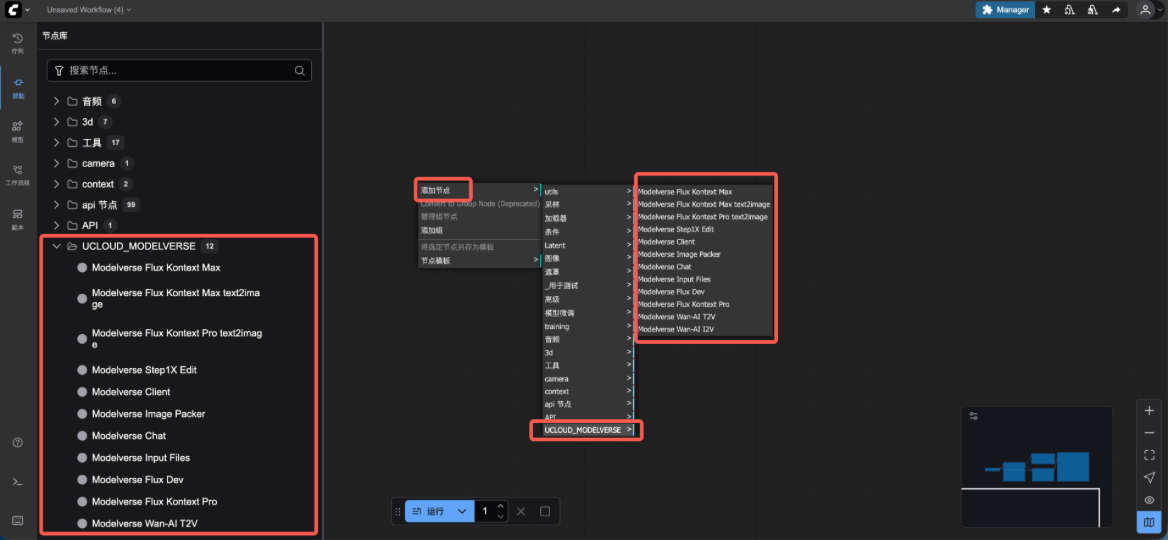
Step 4: Obtain UModelVerse API Key
- Click here to obtain your API Key .
- Add the obtained API Key to the Modelverse Client node.
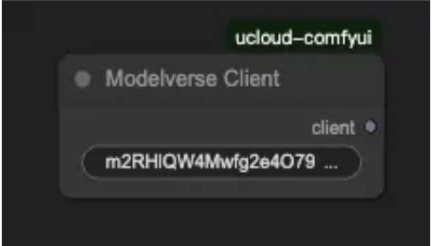
Quick Start: Auto-Load Workflows
Now, your notebook can easily generate viral pet selfies for social media, like making an orange cat travel to Paris:
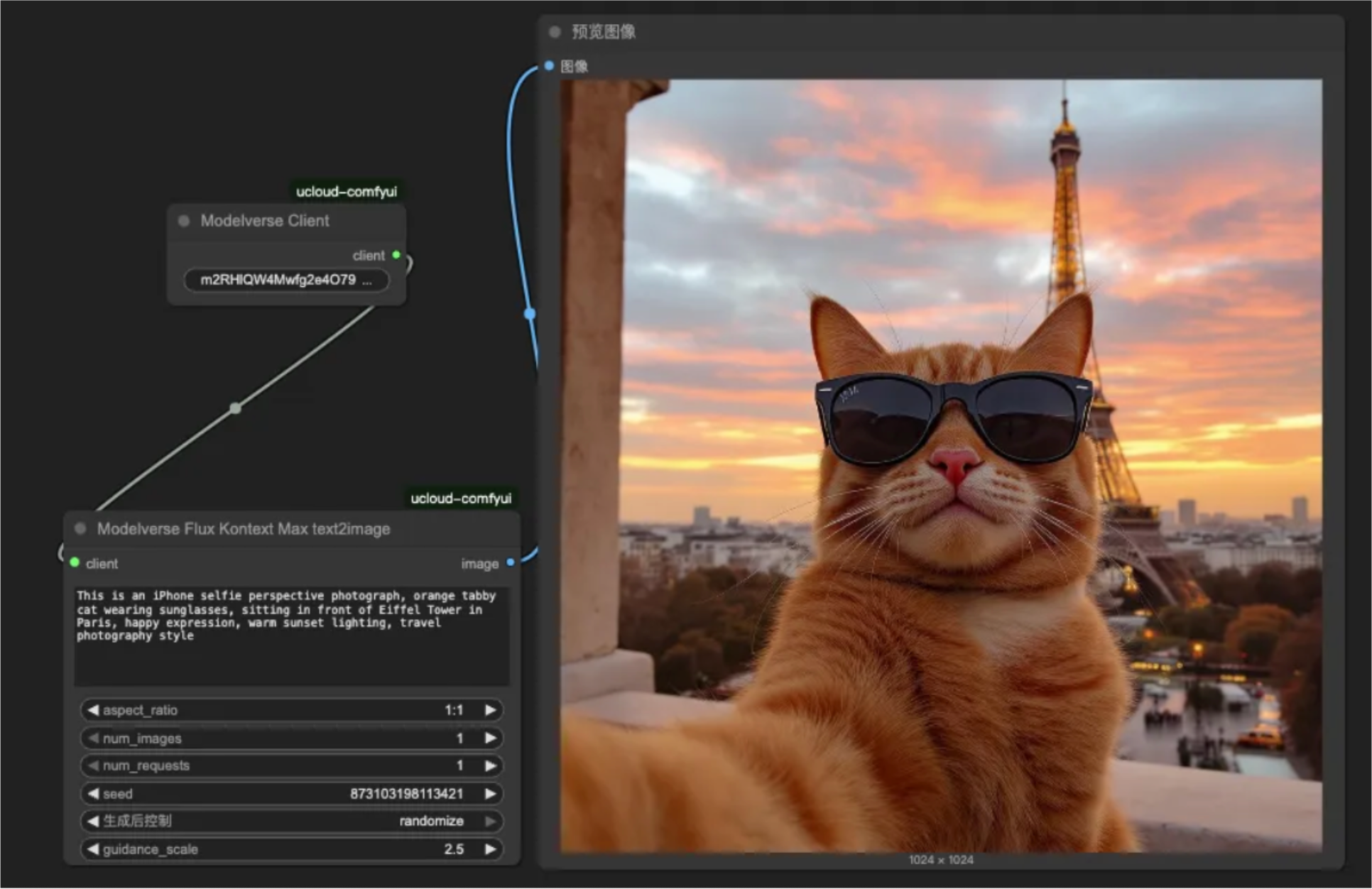
Prompt:
This is an iPhone selfie perspective photograph, orange tabby cat wearing sunglasses, sitting in front of Eiffel Tower in Paris, happy expression, warm sunset lighting, travel photography style.
ModelVerse Core Nodes Introduction
The ModelVerse plugin not only supports standard text-to-image and image-to-image processes but also introduces text generation functionalities. Combined with AI prompt optimization, it allows you to build more robust AI workflows in ComfyUI.
- Modelverse Client: The entry point for configuring the API Key and the starting point for all workflows.
- Modelverse Chat: A text generation node that can be used to generate, optimize, or rewrite prompts.
- Modelverse [Model Name] Text2Image: A text-to-image node supporting advanced models like
Flux Kontext MaxandFlux Kontext Pro. - Modelverse [Model Name] T2V/I2V: A video generation node,
T2Vsupports text-to-video, andI2Vsupports image-to-video, currently supporting theWan-AIseries models. - Modelverse [Model Name] Edit: An image editing node for local optimization or style adjustments of generated images, supporting
Step1X Edit.
Text-to-Image
With ModelVerse’s Text2Image node, you can easily turn your textual creativity into high-quality images.
Text-to-Video
Using the T2V node, you can now directly convert text descriptions into dynamic videos within ComfyUI.
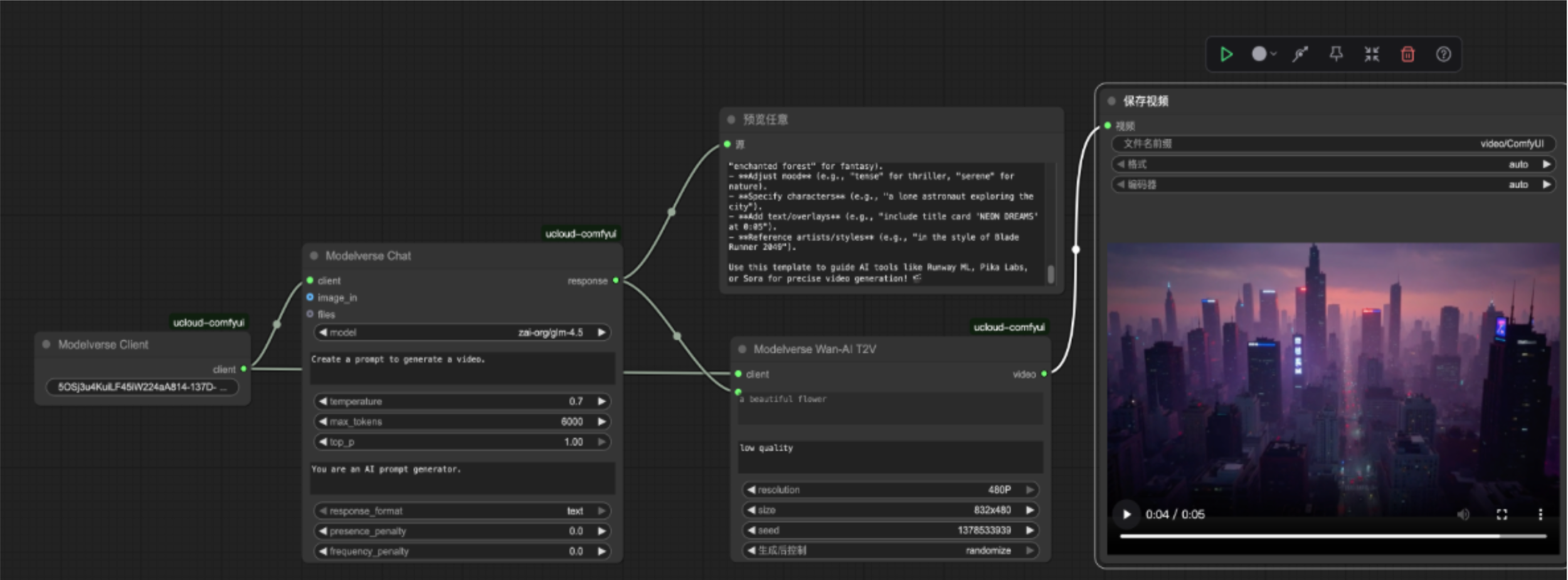
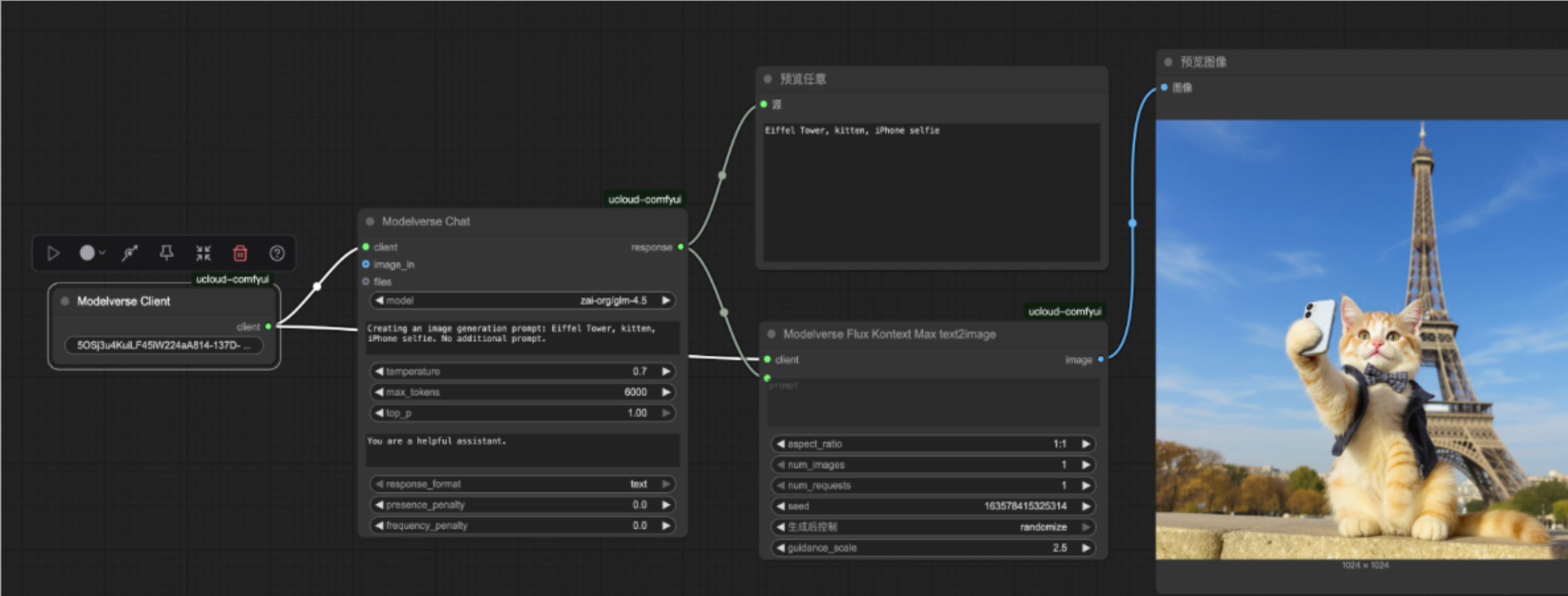
Advanced Workflow: Text Generation -> Image/Video
This is a unique advantage of the ModelVerse plugin. You can first use the Modelverse Chat node (such as the zai-org/glm-4.5 model) to generate or optimize prompts and then directly input the output text into Text2Image or T2V nodes to achieve fully automated content creation.
This workflow greatly enhances creative efficiency and diversity.
Batch Processing of Multiple Images
Use Flux Kontext Pro (Multi-inputs) to batch generate series of works:
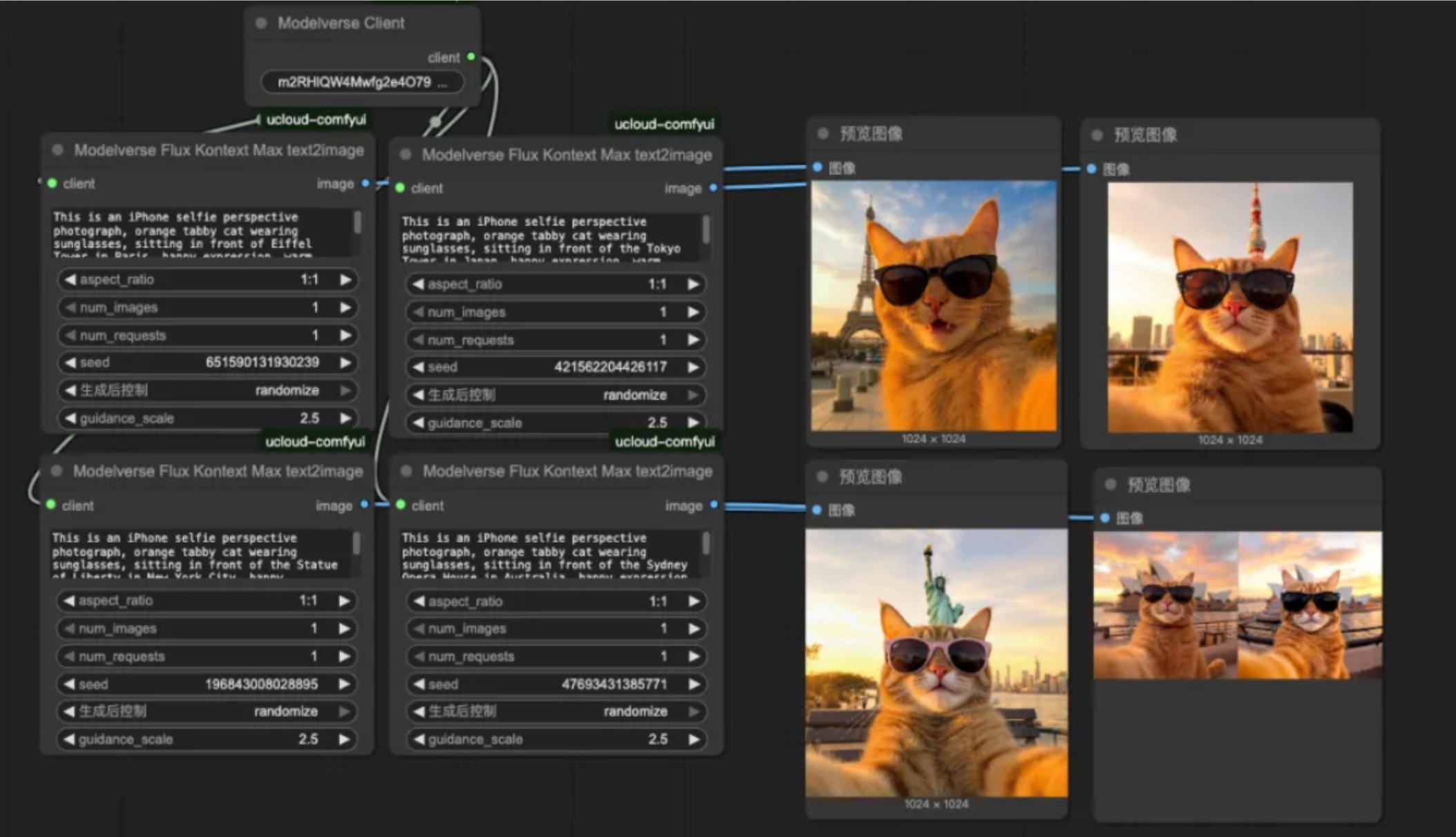
With a single input, you can generate simultaneously:

Detail Optimization and Image Editing
For unsatisfactory details, use Step1X-Edit for fine-tuning:
# Brighten eye reflections
Add bright reflection in cat's eyes

# Adjust whisker details
Enhance whiskers detail and texture

# Optimize background blur
Improve background bokeh effect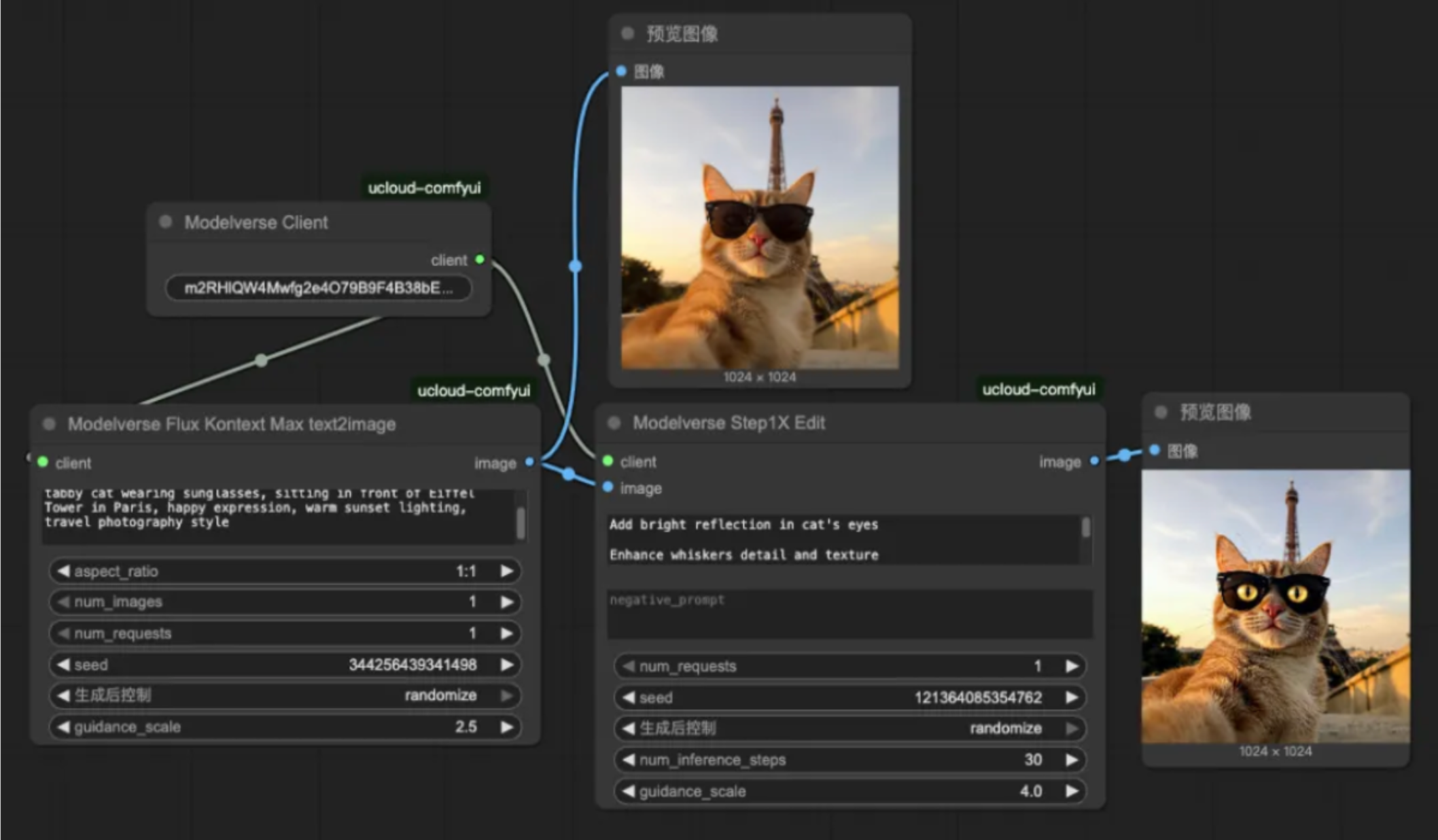

This capability for local editing allows the final result to reach professional photography standards.
Tips: Practical Prompt Optimization
After extensive testing, we have summarized several key tips:
1. Structured Prompting
Basic Structure
[Camera Device] + [Perspective Description] + [Pet Features] + [Background Environment] + [Lighting and Atmosphere] + [Style Definition]Practical Example
iPhone 13 Pro selfie perspective +
golden retriever with happy expression +
Santorini blue dome background +
golden hour lighting +
travel photography style
2. Model Selection Strategy
Text-to-Image Primary Choice
- Flux Kontext Max Text2Image: Highest quality
Image Editing Preferred
- Flux Kontext Pro: Strong detail processing
For Creative Exploration
- Flux Dev: Outstanding stylization ability
For Batch Production
- Multi-inputs version: Highest efficiency
Frequently Asked Questions
Regarding the “import VideoFromFile” Error
If you encounter an “import VideoFromFile Error” after updating our ComfyUI plugin, please upgrade ComfyUI to the latest version and try again.